
Top Tip: We recommend following the instructions here: https://www.protectmycourses.com/wordpress
Are you a developer? Scroll to the end of this page for advanced instructions using functions.php
- Open your account, click Integrations and find your App ID and App Secret
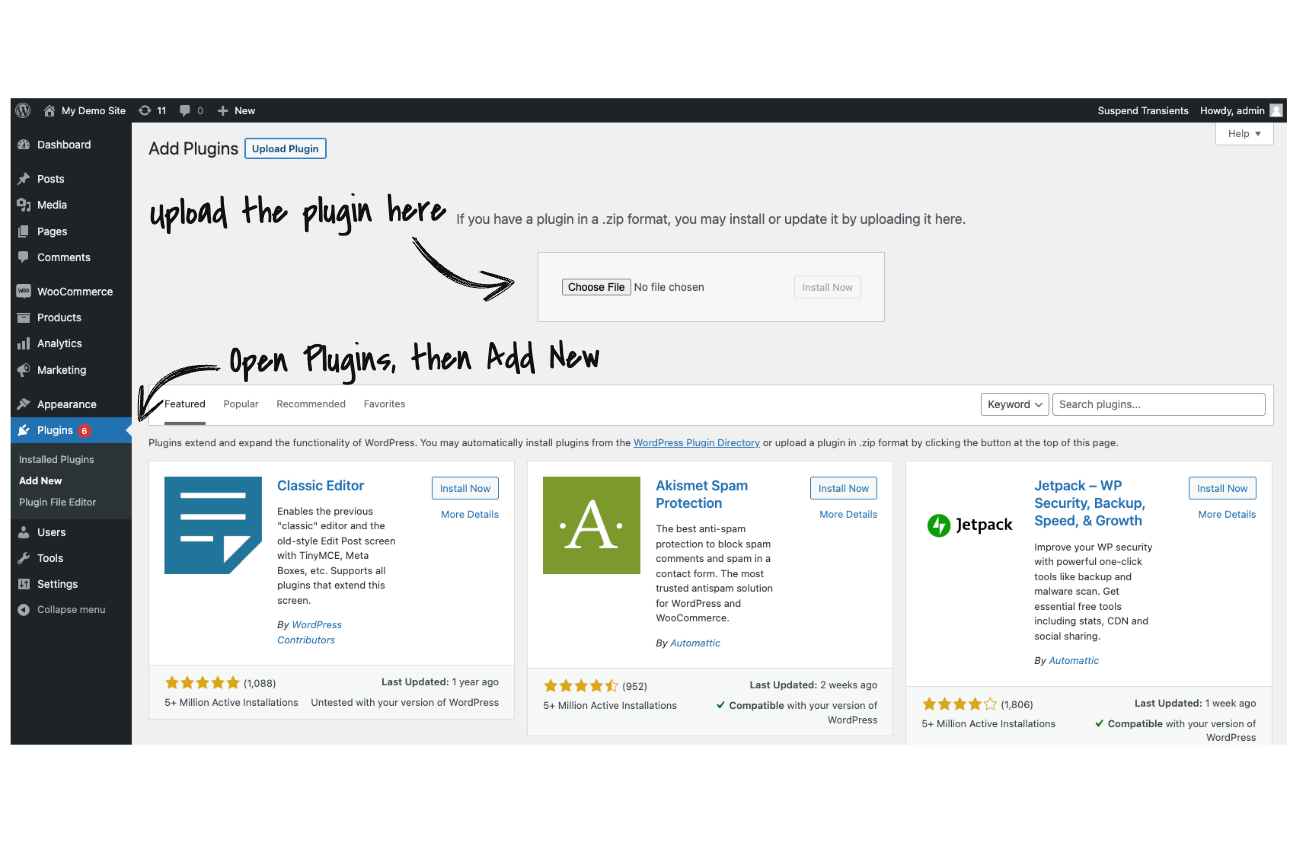
- Download our free WordPress plugin, install it on your WordPress site and activate.
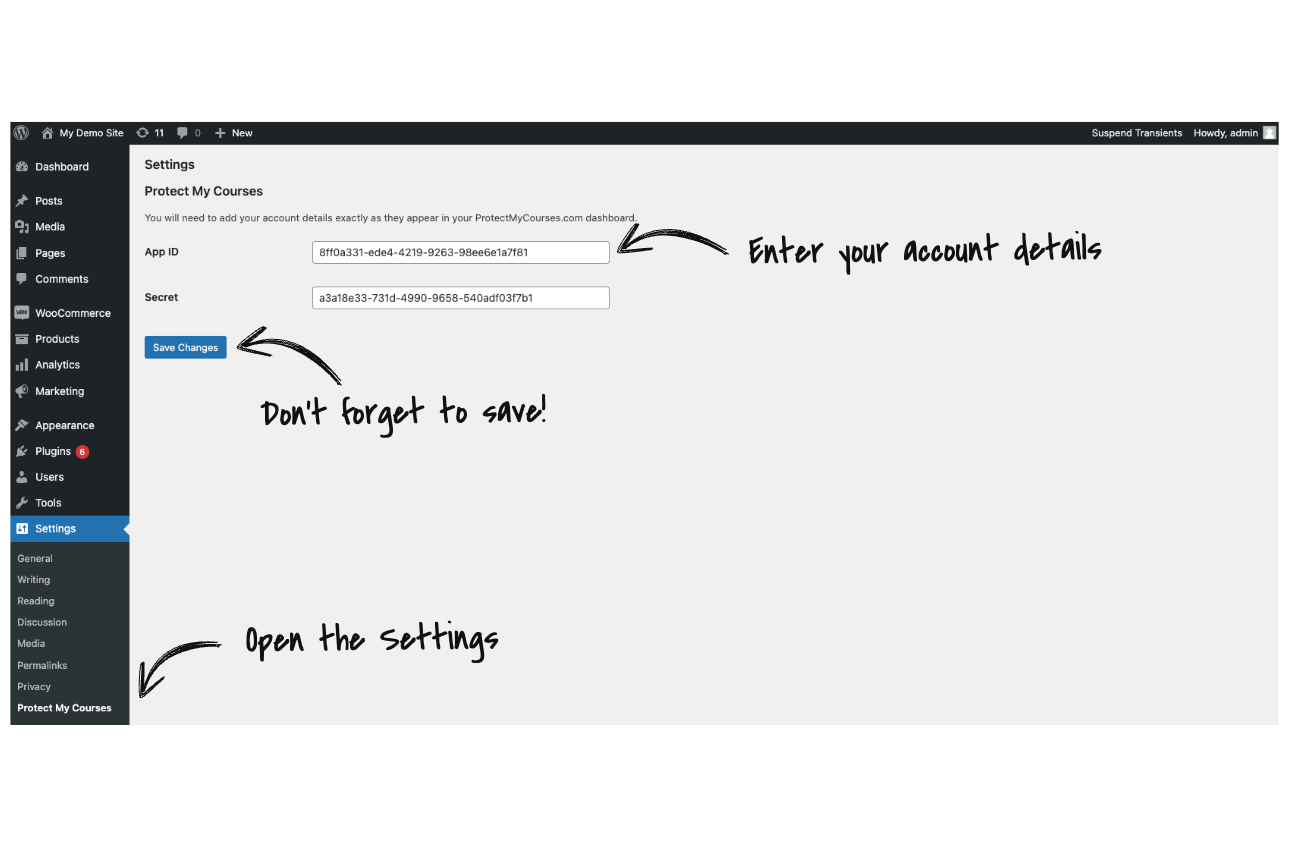
3. In WordPress, open Settings, then Protect My Courses. Enter your App ID and Secret, and click Save Changes
Developers
If you prefer to add directly to functions.php, or in your own method, the following code can act as a guideline.
/**
* Add this code to functions.php
* Note: This code is for example purposes only, you may need to modify it to work with your site.
*/

add_action('wp_footer', 'add_protect_my_courses_footer_code');

function add_protect_my_courses_footer_code() {

if ( is_user_logged_in() ) {

$user = wp_get_current_user();

?>
<script>

    window.dsSettings = {
        appId: 'REPLACE WITH YOUR APP ID',
        name: '<?php echo "{$user->first_name} {$user->last_name}"; ?>',
        email: '<?php echo $user->user_email; ?>',
        hmac: '<?php echo hash_hmac("sha256", $user->user_email, "REPLACE WITH YOUR SECRET"); ?>'
    };
    !function(){var t=window,e=document,a=function(){var t=e.createElement("script");t.type="text/javascript",t.async=!0,t.src="https://www.protectmycourses.com/js/ds.js";var a=e.getElementsByTagName("script")[0];a.parentNode.insertBefore(t,a)};"complete"===document.readyState?a():t.attachEvent?t.attachEvent("onload",a):t.addEventListener("load",a,!1)}();
</script>
<?php

}

}